![GovernmentFrameworks_Logo_Full Colour (3).png]](https://support.governmentframeworks.com/hs-fs/hubfs/GovernmentFrameworks_Logo_Full%20Colour%20(3).png?height=40&name=GovernmentFrameworks_Logo_Full%20Colour%20(3).png)
If there are any unfamiliar terms within this article, please consult our glossary.
An Audit Report is a customizable list of events that have been audited in Laserfiche, as well as information about those events.
Audit Reports allow you to view, filter, and export audit information related to activities performed within a Laserfiche repository. These reports can be customized to analyze specific audit data, visualize it in chart form, and export the data for use in spreadsheet applications like Microsoft Excel. You can also save reports for future use
To create an Audit Report in Laserfiche:
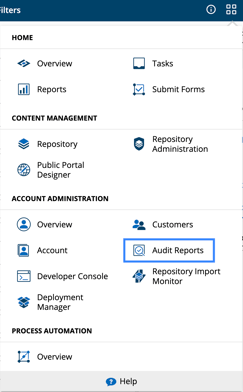
- Select Audit Trail from the App Picker.
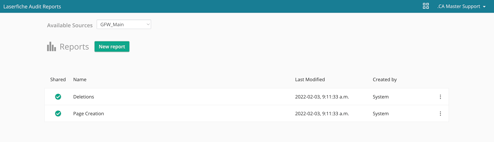
- On the Laserfiche Audit Trail page, click New report.
Under Report Filters, we can run a previously saved report, define a date range to run a report on, add users to be included in the report, define an Entry ID to see all the actions performed on a specific entry, and choose event types to run a report on.
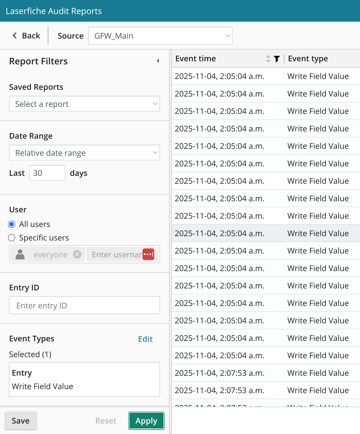
To create a report that displays all the entries with field changes in the last month:
- Under Date Range, ensure Relative Date Range is selected.
- Since we want information from the past month, enter 30 into the box.
- Since we are running a report on all users, make sure the Everyone group is entered into the User box.
- Next to Event Types, click add.
- Select the arrow next to Entry, choose Write Field Value, and click Add.
- When you are finished creating the report, click the Apply button.
After creating the report, you can filter the results even further by adding or removing columns.
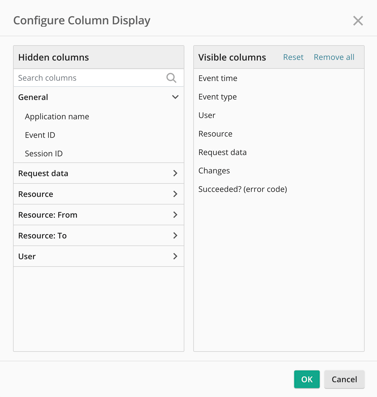
Remember to click the Save button for easy access.
Finally, using the options at the top of the page, you can change the report to a table, line or bar graph, change your timezone, refresh, download, or print the report.

Should you have any further questions, or this article does not complete your help request, please log in to the GFW client support area and lodge a support ticket using this link.

This article was written by Matthew Clooney.
Click here to learn more about our authors.