![GovernmentFrameworks_Logo_Full Colour (3).png]](https://support.governmentframeworks.com/hs-fs/hubfs/GovernmentFrameworks_Logo_Full%20Colour%20(3).png?height=40&name=GovernmentFrameworks_Logo_Full%20Colour%20(3).png)
If there are any unfamiliar terms within this article, please consult our glossary.
Editing a Document
Laserfiche allows you to edit a document in two different ways.
The first is to Edit With Microsoft Word for the Web.
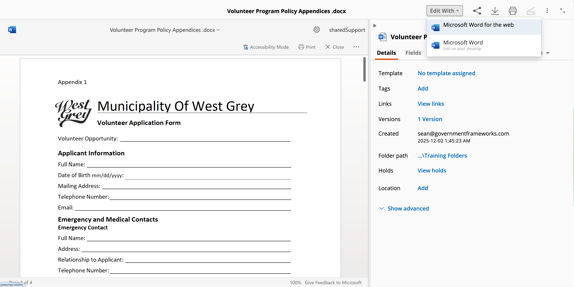
This method opens the file or document natively within Laserfiche itself, letting you collaborate with your co-workers in real time. Laserfiche saves any changes to the document as you work, and these changes are reflected immediately in the Document Viewer under the Preview tab.
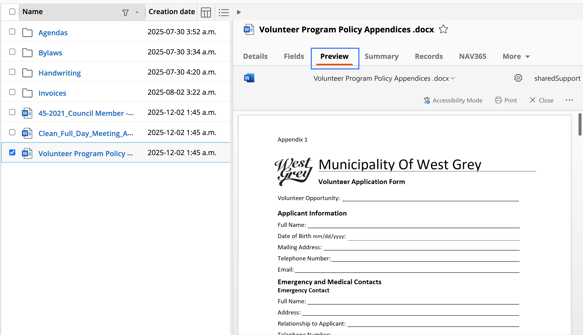
The second way is to Edit With Microsoft Word.
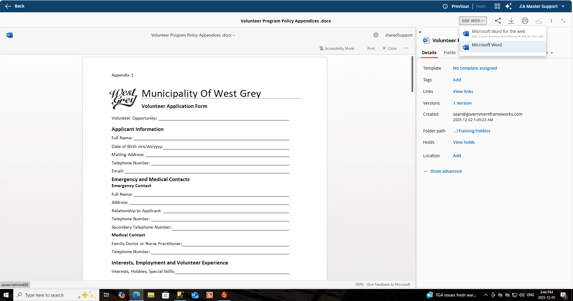
This is commonly referred to as "checking out a document".
When you choose this method, Laserfiche downloads a copy to your computer, and you are responsible for editing, saving, and checking the document back into Laserfiche when you are finished. While the document is checked out, Laserfiche will lock the document that resides in the repository, placing a small pencil icon on the file, preventing anyone from editing it until it is checked back in.
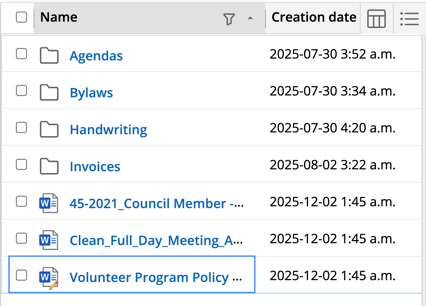
But what happens if the user who checked out a document is no longer with the organization? Does the document remained locked, and therefore inaccessible forever?
Checking In a Document as an Administrator
As an administrator, you have the ability to check a document back into the repository at any point. This could be because the user has moved departments, the document requires revision, or the employee who checked it out is no long with you.
- Navigate to the App Picker > Content Management > Repository Administration.
- You will see any checked out documents in the Activity Pane.
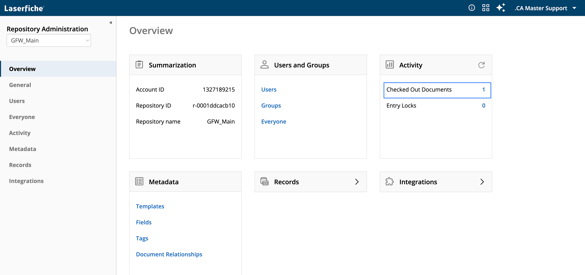
- Select Activity from the left hand menu.
- Check the box next to the document you wish to check back into the repository.
- Select the Undo Check Out icon.
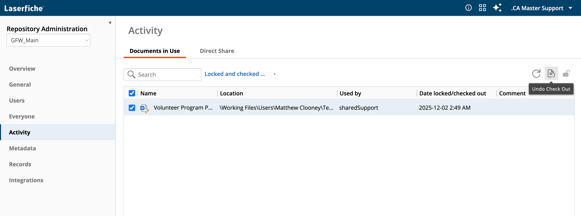
The document has been successfully checked back into the repository, and can now be edited once again.
If you check a document back in using the Activity method, all changes made to the document while checked out may be lost.
Should you have any further questions, or this article does not complete your help request, please log in to the GFW client support area and lodge a support ticket using this link.

This article was written by Matthew Clooney.
Click here to learn more about our authors.