![GovernmentFrameworks_Logo_Full Colour (3).png]](https://support.governmentframeworks.com/hs-fs/hubfs/GovernmentFrameworks_Logo_Full%20Colour%20(3).png?height=40&name=GovernmentFrameworks_Logo_Full%20Colour%20(3).png)
If there are any unfamiliar terms within this article, please consult our glossary.
Laserfiche is nothing if not customizable. The toolbar, for example, streamlines your experience by providing customizable, context-sensitive tools that help with document management and navigation.

The toolbar in Laserfiche provides:
-
Customization: You can modify the toolbar to display specific buttons that are most relevant to your Tasks.
-
Quick Access to Actions: The toolbar contains various actions that can be performed on documents and folders, such as renaming, emailing, and other document management Tasks.
-
Context-Sensitive Options: The actions available on the toolbar can change depending on the selected document or folder, providing you with relevant options based on what you are doing in Laserfiche.
-
Enhanced Navigation: The toolbar includes navigation tools that allow you to quickly move between documents, zoom in and out, and rotate pages, which enhances your overall experience when working with documents.
Setting Toolbar Options for Yourself and Others
As an administrator, you have the ability to set toolbar accessibility by:
- Navigating to your User Account on the top right of Laserfiche.
- Selecting Options from the drop down menu.
- Choosing Tools on the left hand side of the Options menu.
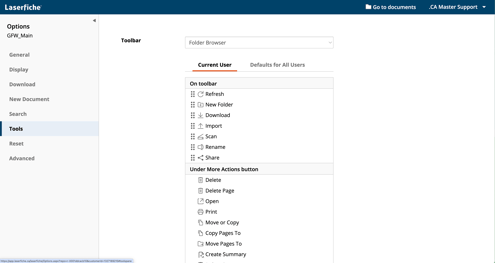
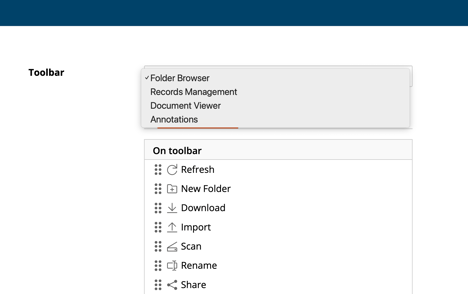
- To begin, you must choose where in Laserfiche your selected tools apply.
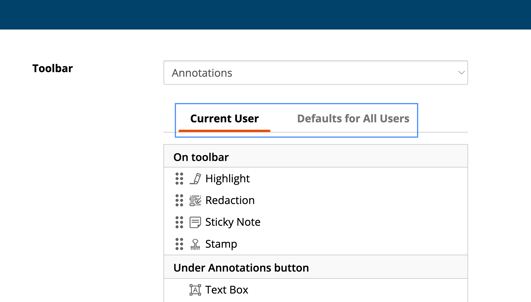
- Next, if you have the appropriate privileges to do so, you may select whether these tools are applied to yourself, or to all users.
- If the Toolbar Options are set to Defaults for All Users, remember to click the Lock down toolbar checkbox.
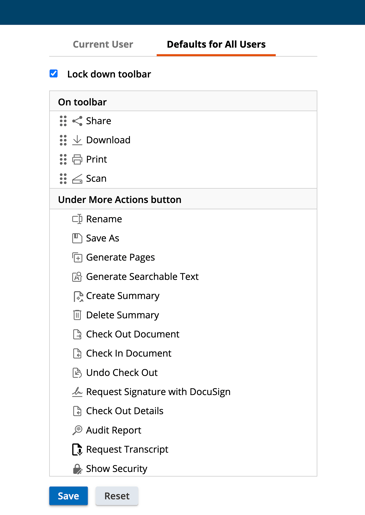
- Finally, select whether these icons will appear on the toolbar, or under the More Actions section.
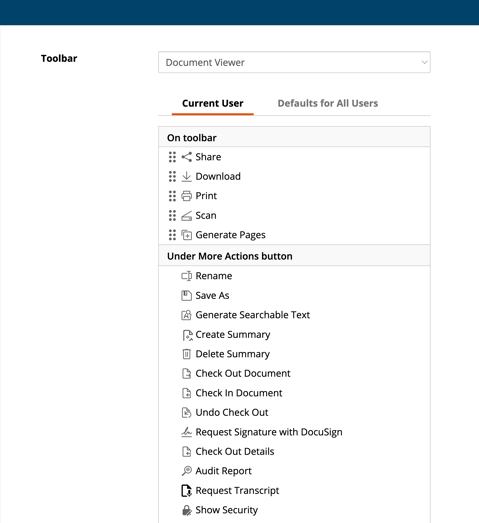
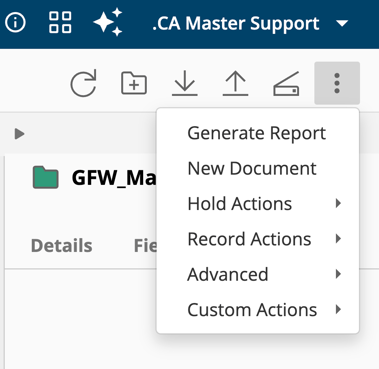
As an example, here are the Toolbar icons. with the More Actions drop down list selected.
Should you have any further questions, or this article does not complete your help request, please log in to the GFW client support area and lodge a support ticket using this link.