![GovernmentFrameworks_Logo_Full Colour (3).png]](https://support.governmentframeworks.com/hs-fs/hubfs/GovernmentFrameworks_Logo_Full%20Colour%20(3).png?height=40&name=GovernmentFrameworks_Logo_Full%20Colour%20(3).png)
If there are any unfamiliar terms within this article, please consult our glossary.
The Laserfiche Home Screen serves as a central access point for various tasks and features.
As you can see in the screenshot below, a large part of the Home Screen is devoted to the Task approval process, whether that's Active, Open or High-Priority Tasks.
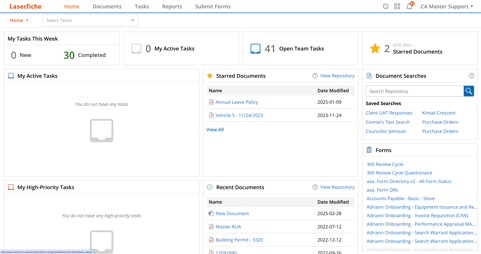
Let's take a look at the process of approving a request, from Form submission to final approval, as it relates to your own Task assignments.
Submitting a Form for Approval
Forms are readily accessible from the Home Screen, either on the right hand side of Laserfiche, or by selecting Submit Forms from the top of your Laserfiche window. The Forms shown are identical, however the Submit Forms tab gives a more visual representation of the actual form selected.
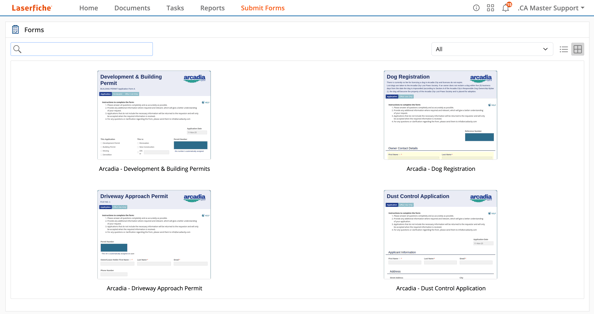
Not every Form submitted will need your attention. However there are some Forms, such as a vacation request, or a budget approval, that will require your attention. When such a Form is submitted, you, or your team, will receive a Task alert, which you will be able to access from your Home Screen.
Accessing Your Tasks
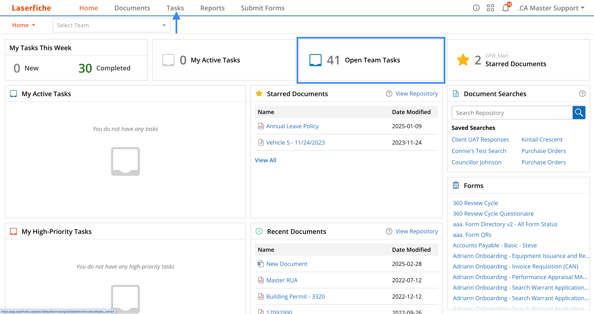
Your Home Screen is the best place to view any Tasks that require your attention.
The Task tabs allows you to manage Tasks for yourself and your teams. You can view and complete Tasks, change their properties such as due dates and priorities, and even reassign Tasks as needed.
To begin, simply click on the appropriate Task box, or choose Tasks at the top of your Home Screen.
The Tasks Screen
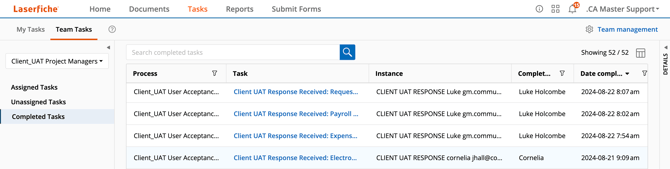
Your Tasks fall under two categories:
- My Tasks
- Open Tasks
- Drafts
- Unassigned Tasks
- Completed Tasks
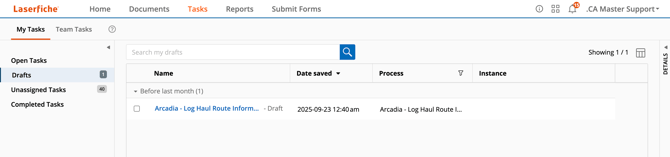
- Team Tasks
- Assigned Tasks
- Unassigned Tasks
- Completed Tasks
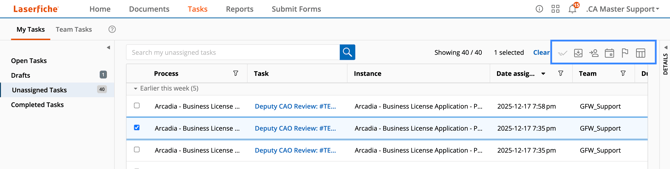
If a Task is Unassigned, you may click the box beside to select it, which then offers you several important options. You may:
- Approve the Task
- Assign the Task to yourself
- Assign the Task to somebody else
- Adjust the due date
- Modify the Task's priorities
- Change the column display
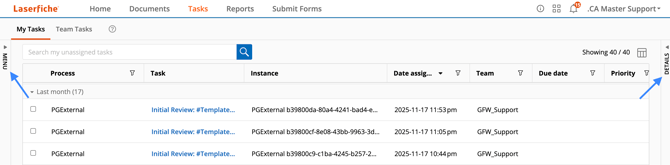
Occasionally, you may find that the Task menu and the Details menu have slid out of view. Both may be accessed by clicking the small arrows on the left or right side of the Tasks screen.
Should you have any further questions, or this article does not complete your help request, please log in to the GFW client support area and lodge a support ticket using this link.

This article was written by Matthew Clooney.
Click here to learn more about our authors.