![GovernmentFrameworks_Logo_Full Colour (3).png]](https://support.governmentframeworks.com/hs-fs/hubfs/GovernmentFrameworks_Logo_Full%20Colour%20(3).png?height=40&name=GovernmentFrameworks_Logo_Full%20Colour%20(3).png)
If there are any unfamiliar terms within this article, please consult our glossary.
What is 'Smart Fields'?
Laserfiche Smart Fields allows you to configure fields so that their values can be automatically extracted from documents using Laserfiche's built in artificial intelligence. This feature can be enabled on a field-by-field basis, allowing for flexibility in how information is captured.
Smart Fields can be configured to extract values automatically when a Template is applied, or users can manually trigger extraction if needed. This feature is particularly useful for fields containing the information are readily available in the document, such as applicant details in an HR document, while still allowing users to manually input data for other fields.
Advantages of Using Smart Fields
-
Automated Data Extraction: Smart Fields automatically extracts key information from documents using Laserfiche AI. This helps reduce time and minimizes human error.
-
Efficiency in Document Processing: By automatically populating fields with extracted data, Smart Fields streamline the document processing workflow. This is particularly beneficial when handling large volumes of documents.
-
Flexibility in Configuration: Users can configure Smart Fields on a field-by-field basis, allowing for tailored extraction processes. For example, you might want to automatically extract applicant information from HR documents while leaving other fields for manual input.
-
Enhanced Searchability: By capturing and storing relevant metadata through Smart Fields, documents become more searchable. This improves the ability to retrieve specific information quickly, which is crucial for efficient document management.
-
Integration with Other Features: Smart Fields can be used in conjunction with other Laserfiche features, such as classification and automation tools. This integration allows for more sophisticated document handling and processing capabilities.
-
Support for Complex Data Types: Smart Fields can handle advanced features like line-item extractions and capturing data from tables, making them suitable for a variety of document types and formats.
-
User-Friendly Setup: Setting up Smart Fields is straightforward, requiring only the selection of the "automatically extract values" option and a description of the information to be captured.
Setting Up Smart Fields
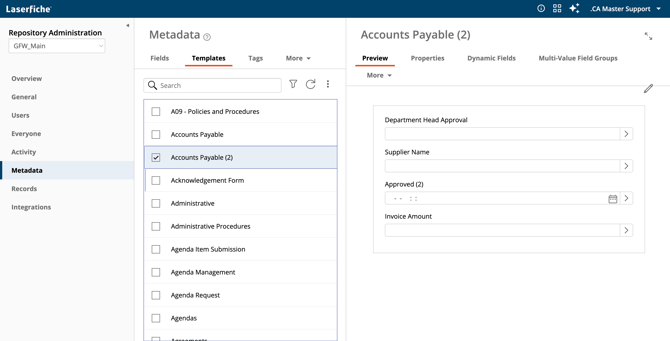
- Navigate to the App Picker > Repository Administration > Metadata, then select Templates.
- Choose an existing template or click the Add button to create a new one.
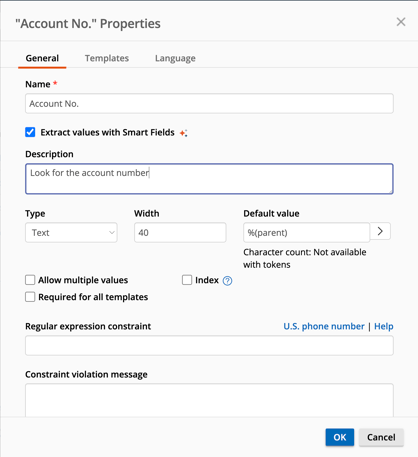
- When creating or modifying a field, select the option Automatically extract values to enable Smart Fields for that field.
- In the field properties, provide a description that clearly states what information the Smart Field should extract. This description will guide the Laserfiche AI in identifying the relevant data in the document. For example, you might use "The document's author" for an Author field.
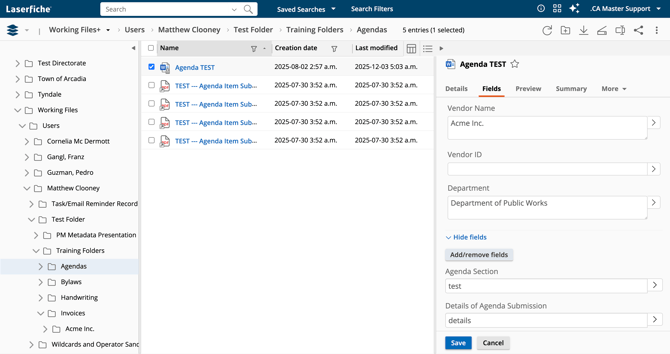
- Once your Smart Fields are configured, apply the template to a document. When the template is applied, Laserfiche AI will automatically attempt to fill in the Smart Fields based on the content of the document.
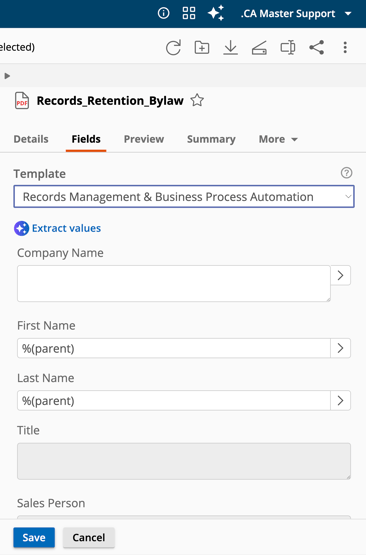
- If you want to trigger extraction manually, you can do so by selecting the Extract values option when viewing or editing the document. This will allow you to see the extraction process in action and ensure that the correct values are being populated.
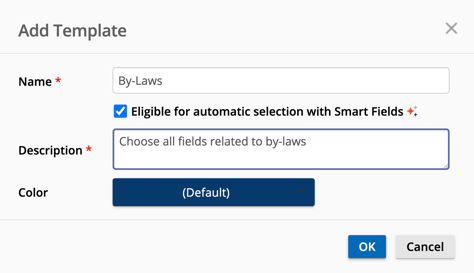
- You can enhance the Smart Fields functionality by marking templates as eligible for automatic selection. This allows Laserfiche AI to choose the best-fit template for your document automatically, streamlining the metadata extraction process.
It’s recommended to test your prompts on a few representative documents to ensure they work effectively before applying them broadly across your repository. This helps fine-tune the prompts for better accuracy in data extraction.
Should you have any further questions, or this article does not complete your help request, please log in to the GFW client support area and lodge a support ticket using this link.