![GovernmentFrameworks_Logo_Full Colour (3).png]](https://support.governmentframeworks.com/hs-fs/hubfs/GovernmentFrameworks_Logo_Full%20Colour%20(3).png?height=40&name=GovernmentFrameworks_Logo_Full%20Colour%20(3).png)
If there are any unfamiliar terms within this article, please consult our glossary.
Laserfiche offers a number of different types of reporting that can help monitor and manage repository activity. These various report types provide comprehensive tools for you to analyze and manage your repository effectively.
These reports are all available from one convenient location.
- Navigate to the App Picker > Reports.
- You can now pick from six different types of reports, as shown below:
- You can now pick from six different types of reports, as shown below:
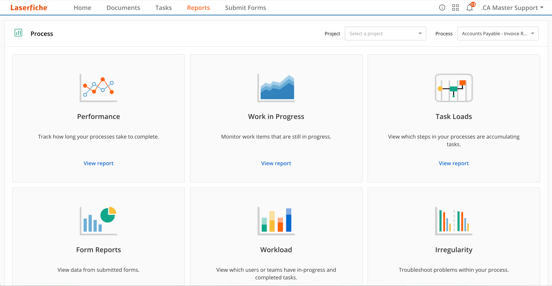
1. Performance Reports
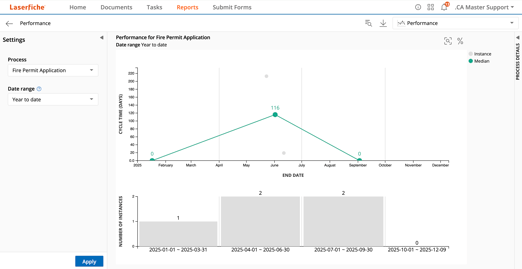
- These reports provide insights into the performance of business processes, showing when instances were completed and how many instances were completed over a time range, often referred to as a "cycle time".
- This report is valuable for analyzing the efficiency of business processes and identifying areas for improvement based on the completion rates of process instances.
- Viewing Process Completion Rates:
- By selecting a specific process and a date range, you can view completion rate statistics for that process.
- Scatter Plot of Cycle Times:
- The report includes a scatter plot that displays cycle times for different instances completed within the selected date range. s showing the cycle time. The median cycle time is marked with a green dot.
- Bar Chart of Instance Distribution:
- Alongside the scatter plot, a bar chart shows the distribution of completed instances over time. This allows you to see how many instances were completed on specific dates.
- Interactive Features:
- You can interact with the scatter plot by clicking on individual dots to view detailed information about specific instances, including their action history and variable values. Additionally, you can zoom in on specific areas of the plot for a closer look.
- You can interact with the scatter plot by clicking on individual dots to view detailed information about specific instances, including their action history and variable values. Additionally, you can zoom in on specific areas of the plot for a closer look.
2. Work in Progress Reports
- These reports provide statistics about in-progress instances, including potential bottlenecks and forecasts of completion dates.
- This report is essential for monitoring ongoing processes and ensuring that any potential issues are addressed promptly to maintain efficiency.
- Statistics on In-Progress Instances:
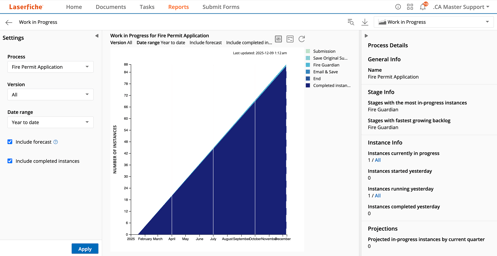
- The report allows you to view statistics about in-progress instances, including which stages of a process may be potential bottlenecks. This helps in identifying areas that may require attention or optimization.
- Forecasting Future Instances:
- The report includes forecasts of completion dates and estimates of how many in-progress instances you can expect in the future. This predictive capability aids in planning and resource allocation .
- Data Selection Options:
- You can select the specific process and version you want to analyze, as well as the date range for the data you wish to view. This customization allows for focused analysis based on relevant criteria
- Visual Representation:
- The report features a chart that displays the number of instances over time, color-coded by their current stage. This visual representation helps in quickly assessing the status of various instances.
- Detailed Insights:
- The report provides details on which stages have the most in-progress instances and which stages are accumulating instances at the highest rate. You can click on specific statistics to view a table of all instances contributing to those numbers, allowing for deeper analysis.
3. Task Loads Reports
- These reports allow you to visualize which user tasks in a process are accumulating too many tasks, potentially creating bottlenecks.
- It is an essential tool for managing user tasks effectively within business processes, ensuring that no single user or team becomes overwhelmed with tasks.
- Heat Map Visualization:
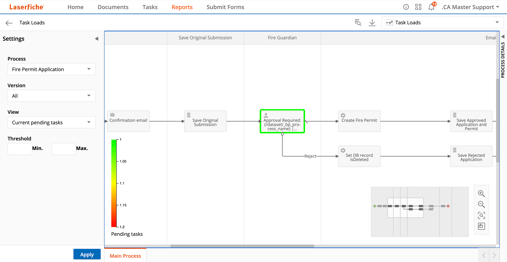
- The report generates a heat map that color-codes user tasks based on the number of pending tasks or the average number of tasks accumulated per day. This helps in quickly identifying which tasks are overloaded.
- Criteria Selection:
- You can select various criteria to generate the heat map, including Process, Version, View and Threshold.
- Task Load Indicators:
- User tasks with a heavy load will be highlighted in red, indicating a need for attention, while those with a moderate or low load will be shown in yellow-green and green, respectively.
- Usage:
- This report is particularly useful for process managers and administrators to monitor task distribution and identify areas where workload adjustments may be necessary to improve efficiency.
4. Forms Report
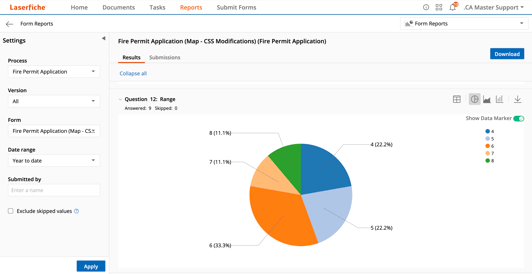
- These reports allow you to view individual submitted forms and aggregated data from those submissions.
- This reporting capability is essential for analyzing form submissions and gaining insights into user input and process performance.
- Viewing Individual Submissions:
- You can select the process and specific form you want to analyze, along with the date range for the submissions. After applying these criteria, you can view individual submitted forms, which include details such as the submitter's username and the time and date of submission. Each submitted form view displays all the fields and their values.
- Aggregated Submission Data:
- The report provides aggregate statistics for each field in the form. You can visualize this data in various formats, including tables, pie charts, bar charts, and line charts. You can expand or collapse sections for long forms to manage screen space effectively.
- Customization Options:
- The Forms Report allows you to filter and customize the data displayed, enabling you to focus on specific instances or criteria relevant to your analysis.
5. Workload Report
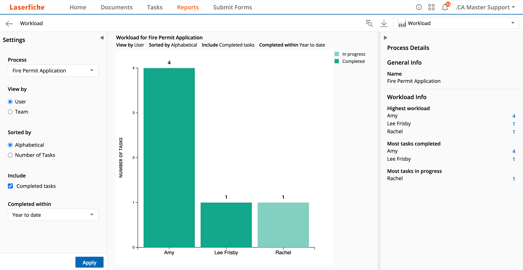
- This report allows you to view how in-progress and completed tasks are distributed among users or teams.
- It is useful for identifying task distribution and potential bottlenecks within your processes, helping you manage workloads effectively.
- Report Settings:
- You can select the specific process you want to analyze and choose the version of that process.
- The report can be configured to show workloads for individual users or for teams.
You have the option to include completed tasks in the report, with the ability to specify a date range for those completed tasks.
- Visualization:
- The report generates a bar chart that displays the number of tasks completed or currently in progress for each user or team.
- You can expand the details pane to see which user or team has the highest workload, along with the number of completed and in-progress tasks.
- Detailed Insights:
- By clicking on a specific bar in the chart, you can access more detailed information about the workload of that user or team, including their current tasks and the most recently completed tasks.
- By clicking on a specific bar in the chart, you can access more detailed information about the workload of that user or team, including their current tasks and the most recently completed tasks.
6. Irregularity Reports
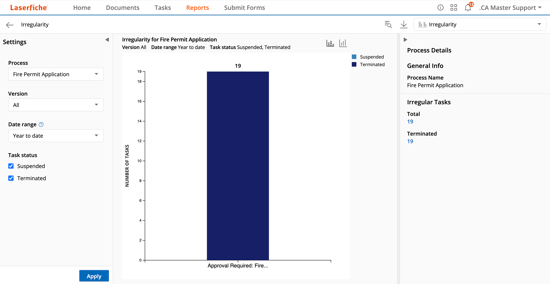
- These reports show suspended and terminated tasks to help troubleshoot process issues.
- This report is essential for maintaining the health of business processes and ensuring that any irregularities are promptly addressed.
- Overview of Irregularities:
- The report shows which tasks from a selected process have been suspended or terminated, along with the number of times these irregularities occurred. This includes both user tasks and service tasks.
- Selecting Process and Date Range:
- You can filter the report by selecting a specific process and version, as well as a date range for which you want to view data. You can choose to see suspended tasks, terminated tasks, or both.
- Visual Representation:
- If there are instances with irregularities within the selected date range, the report displays a bar chart. Each bar represents a task in the process, showing the number of times it has been suspended or terminated.
- Detailed Information:
- By clicking on a specific bar in the chart, you can access additional information about the tasks, including the type of irregularity and a link to view the details of the instances where the irregularity occurred. This feature is useful for troubleshooting and identifying issues within the process.
- Utility for Troubleshooting:
- The Irregularity Report is particularly valuable for process managers and administrators to monitor and address issues that may disrupt workflow efficiency. It helps in pinpointing where in a process problems may be occurring.
7. Audit Reports
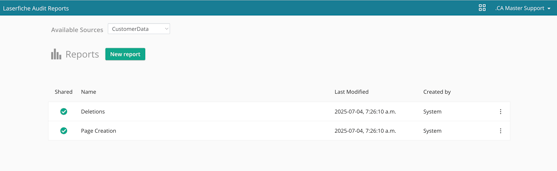
- Finally, you can also select to run an Audit Report from the Reports menu. You will notice that in the screenshot below, the Deletion and Page Creation reports have been added to the Reports menu, since they are used extensively.
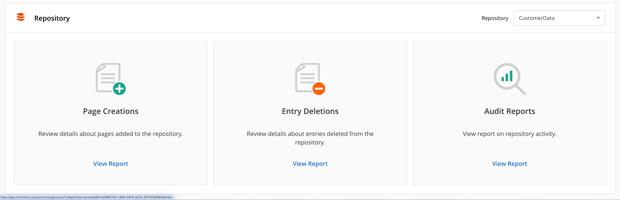
- These reports enable users to view, filter, and export audit information. Users can create customizable reports to analyze audit data, view it as charts, and export the data for use in spreadsheet programs like Microsoft Excel.
- These reports are essential for monitoring repository activity, ensuring compliance, and enhancing security within the Laserfiche environment.
- Customizable Event Selection:
- Users can create audit reports by selecting specific event classes or individual events to include in the report. This allows for tailored reporting based on the actions that are most relevant to the user.
- Filtering and Display Options:
- The reports can be filtered by various criteria, including date range and user actions. Users can also customize the columns displayed in the report, adding or removing columns as needed.
- Graphical Representation:
- In addition to tabular data, audit information can be visualized as charts, such as line or bar graphs, providing a clearer understanding of trends and patterns in the audit data.
- Exporting Data:
- Audit reports can be exported for use in spreadsheet programs like Microsoft Excel, allowing for further analysis and sharing of the data.
- Saving and Managing Reports:
- Users have the option to save their audit reports for future use, making it easy to run the same report again without having to redefine the filters.
- Access Requirements:
- To create or run an audit report, users must have been granted the appropriate permissions in Account Administration.
- Audit Configuration:
- Auditing must be configured in the Laserfiche repository to track specific actions, and users can set up requirements for providing reasons for certain actions, such as deletions or exports.
Should you have any further questions, or this article does not complete your help request, please log in to the GFW client support area and lodge a support ticket using this link.

This article was written by Matthew Clooney.
Click here to learn more about our authors.